Mobile App Navigation Patterns: Tabs, Drawers, and Nested Flows
Choose mobile app navigation patterns by task frequency, information structure, accessibility needs, and how easily people can recover their place.
Navigation should make the shape of an app understandable. People need to know which areas exist, where they are, and how to move without losing their work. A tab bar, drawer, or nested flow is not a styling preference: each one exposes a different relationship between destinations.
Start with the tasks people return to, then map the content hierarchy. Use direct navigation for peer destinations, nested navigation for parent-to-detail relationships, and a drawer or adaptive larger-screen navigation when the app has more destinations than a compact screen can comfortably show.
Key takeaways
- Use tabs or a navigation bar for a small set of distinct, frequently revisited top-level areas.
- Use nested navigation when a destination is meaningfully inside another, and preserve a clear back path.
- Treat drawers as a way to expose a broader destination list, not as a hiding place for essential tasks.
- Keep labels, selected states, focus behavior, and state restoration clear so people can orient and recover.
Begin with the structure, not the component
List the app’s destinations and group them by the user’s mental model. A destination such as Search may sit alongside Home as a peer; a saved item’s detail belongs beneath Saved. If people need to jump between peers often, keep those choices visible. If they usually move from a collection to one item and then back, a stack or nested flow communicates that relationship naturally.
Separate destinations from actions. Compose, share, filter, and sort change or act on the current context; they are not usually places in the app. Put them in a toolbar, menu, or contextual control rather than turning every action into a primary navigation item.
- Name the jobs people do repeatedly, and identify which areas must be reachable from anywhere.
- Draw parent-child relationships before choosing navigation controls.
- Keep destinations at the same hierarchy level visually and behaviorally consistent.
Compare the three patterns
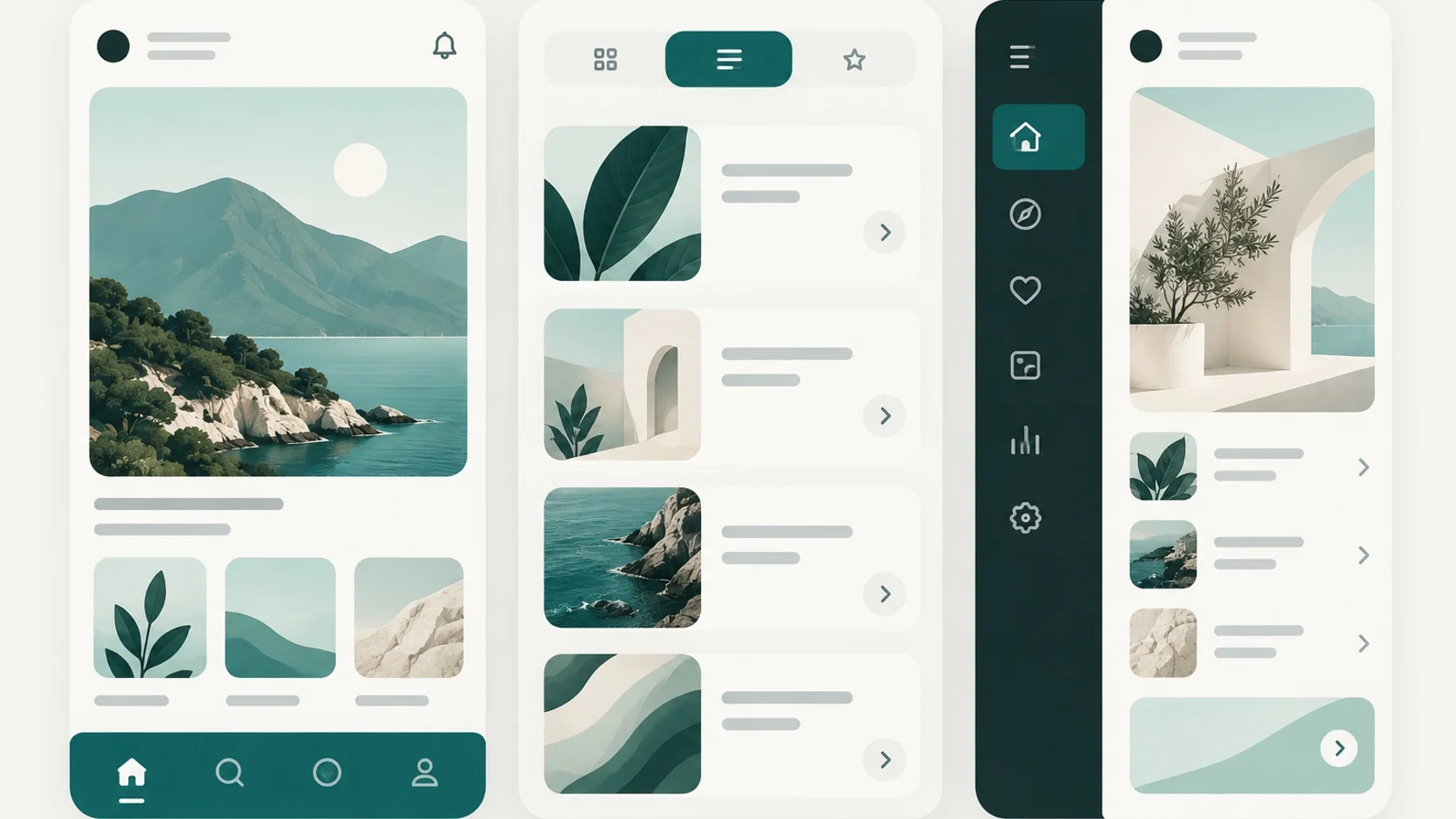
A tab bar or navigation bar makes a few top-level destinations visible and quickly switchable. It works when the destinations are peers and each label is recognizable without explanation. Keep the current area selected. Avoid stuffing unrelated actions into the bar or letting important destinations disappear into overflow.
A navigation drawer can hold a larger, grouped set of destinations and sometimes account or workspace switching. A modal drawer saves screen space, but requires an extra open-and-choose step and temporarily covers content. On compact phones that cost can make frequent destinations feel buried. Material 3’s current Android guidance favors a navigation bar for three to five compact destinations and adapts navigation for larger window sizes; older Material guidance that recommends drawers for five or more destinations should not be mistaken for a universal current threshold.
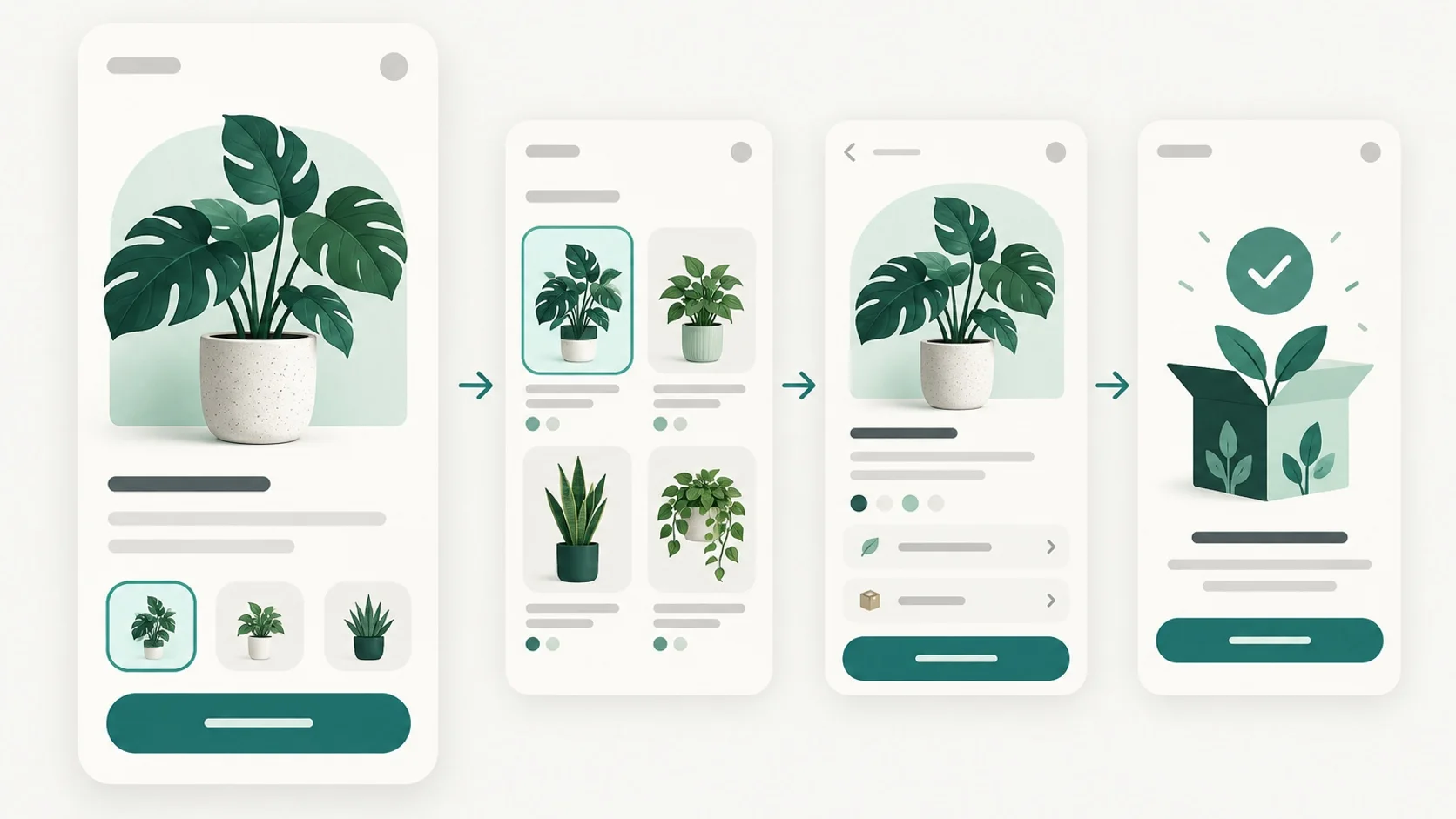
Nested navigation uses a list, card, or link to open a child view, with a title and back control that preserve the path. It suits categories, settings, product details, and step-by-step tasks. Deep nesting becomes frustrating when the hierarchy is hidden, back behavior is inconsistent, or users must repeatedly unwind to reach a sibling. Add search, shortcuts, or a clearer top-level structure when people frequently jump across branches.
| Pattern | Fits when | Watch for |
|---|---|---|
| Tabs / navigation bar | A few peer areas deserve frequent, direct access | Too many destinations, ambiguous icons, hidden overflow, lost per-tab state |
| Navigation drawer | People need an organized list of many or grouped destinations | Essential areas hidden behind a menu, long scrolling list, focus or dismissal problems |
| Nested navigation | People move from a parent collection into a related detail or task | Unclear location, inconsistent Back, excessive depth, lost entered data |
Choose by task frequency and screen size
Ask how often people switch between areas during a typical session. A compact, stable set of high-frequency destinations favors a visible bar. If most use is focused on one task or reading a detail, keep navigation quieter and preserve room for content. A drawer can work for less frequent sections, but check that people can still find them and return without guessing.
Plan for window size, orientation, and platform conventions. Apple’s current Human Interface Guidelines describe the iPhone tab bar as top-level navigation and support an adaptable tab bar/sidebar presentation on iPad. Material 3 calls its compact pattern a navigation bar and offers different navigation forms as available width grows. These patterns share a purpose but are not identical components; follow native placement, behavior, and adaptation rather than copying one platform’s chrome onto another.
Make orientation and recovery dependable
Icons alone make navigation harder to learn and can be unclear to screen-reader users. Give destinations short visible labels, expose the selected state semantically, and ensure controls have accessible names and usable hit areas. Check contrast in selected and unselected states, larger text, localization, and right-to-left layouts. Test with VoiceOver or TalkBack and with keyboard or switch navigation where supported; focus should move predictably when a drawer opens, a destination is chosen, or a view is dismissed.
Recovery is part of navigation. Keep Back and Close behavior distinct: Back retraces a hierarchy, while Close exits a temporary or modal presentation. Preserve a useful position and entered data when switching top-level areas or returning from details. When a destination is empty or temporarily unavailable, keep its place stable and explain the state rather than silently removing or disabling navigation. For a destructive or costly task, make the return path clear before the user commits.
A practical navigation audit
Walk through the app with a real task, then repeat with accessibility features enabled. Record whether people can identify the current area, reach a frequent destination, and recover after a wrong turn. Compare the same journey on a compact phone and a larger window; an adaptive layout should preserve the information architecture as the control changes form.
Use the screen library to compare real examples of app sections and flows, then evaluate each against your product’s tasks. The strongest pattern keeps its structure legible as the app grows and makes the return path clear after an interruption.
- Can a new user explain the top-level areas from their labels alone?
- Are peer destinations easy to switch between, with selection clearly shown?
- Do detail screens show a meaningful title and a predictable Back path?
- Does opening and closing a drawer preserve context and move accessibility focus sensibly?
- Do labels, targets, contrast, and selected states remain usable with larger text and assistive technology?
- Can a person return without losing draft input, scroll position, or a useful place in the hierarchy?
- Does the structure adapt to a larger screen without duplicating competing primary navigation?