App flows vs individual screenshots: how to study the sequence
Learn how to review app screenshot sequences for task structure, state changes, and transition gaps, and where individual UI references stop short of an interactive flow.
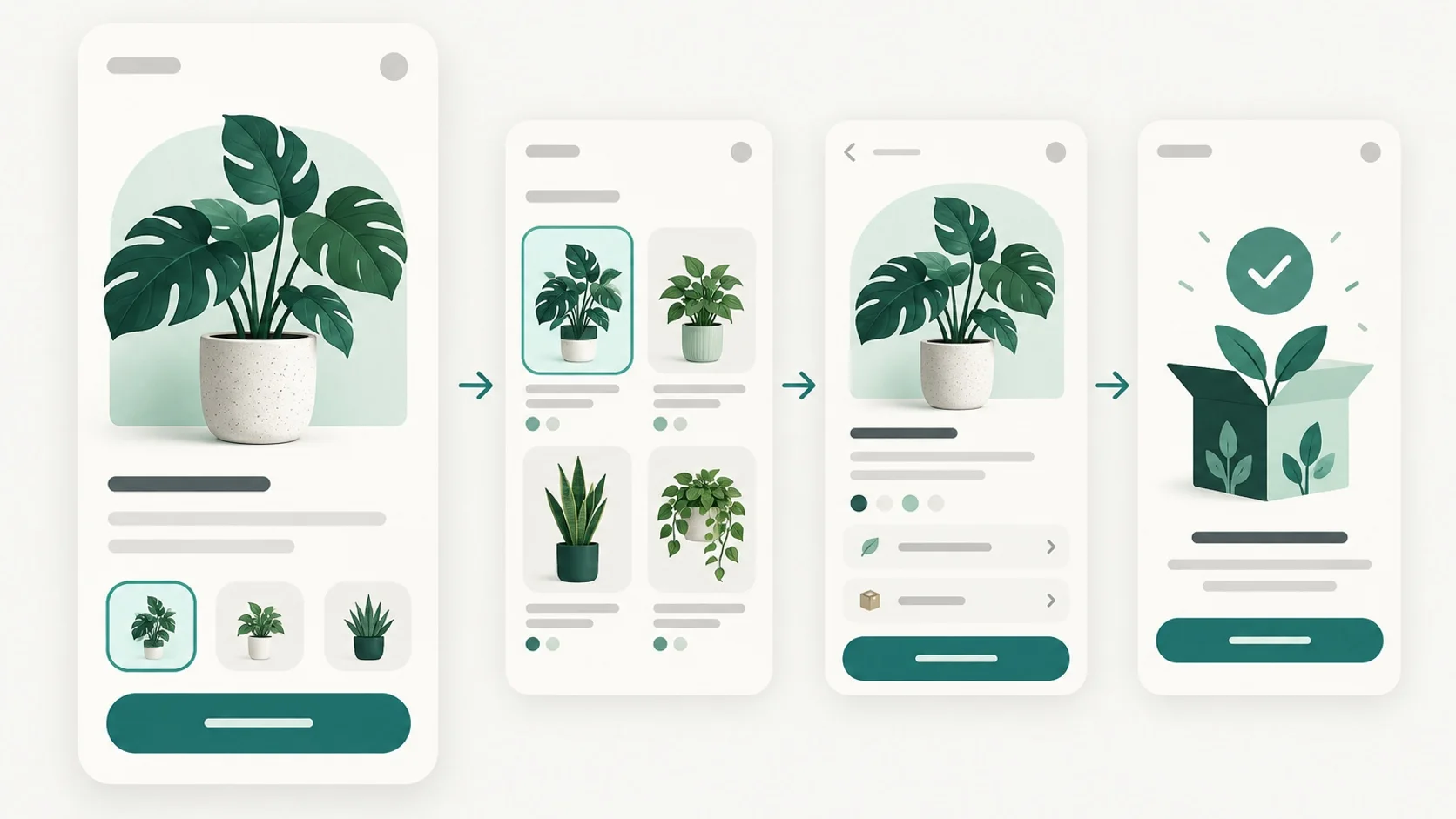
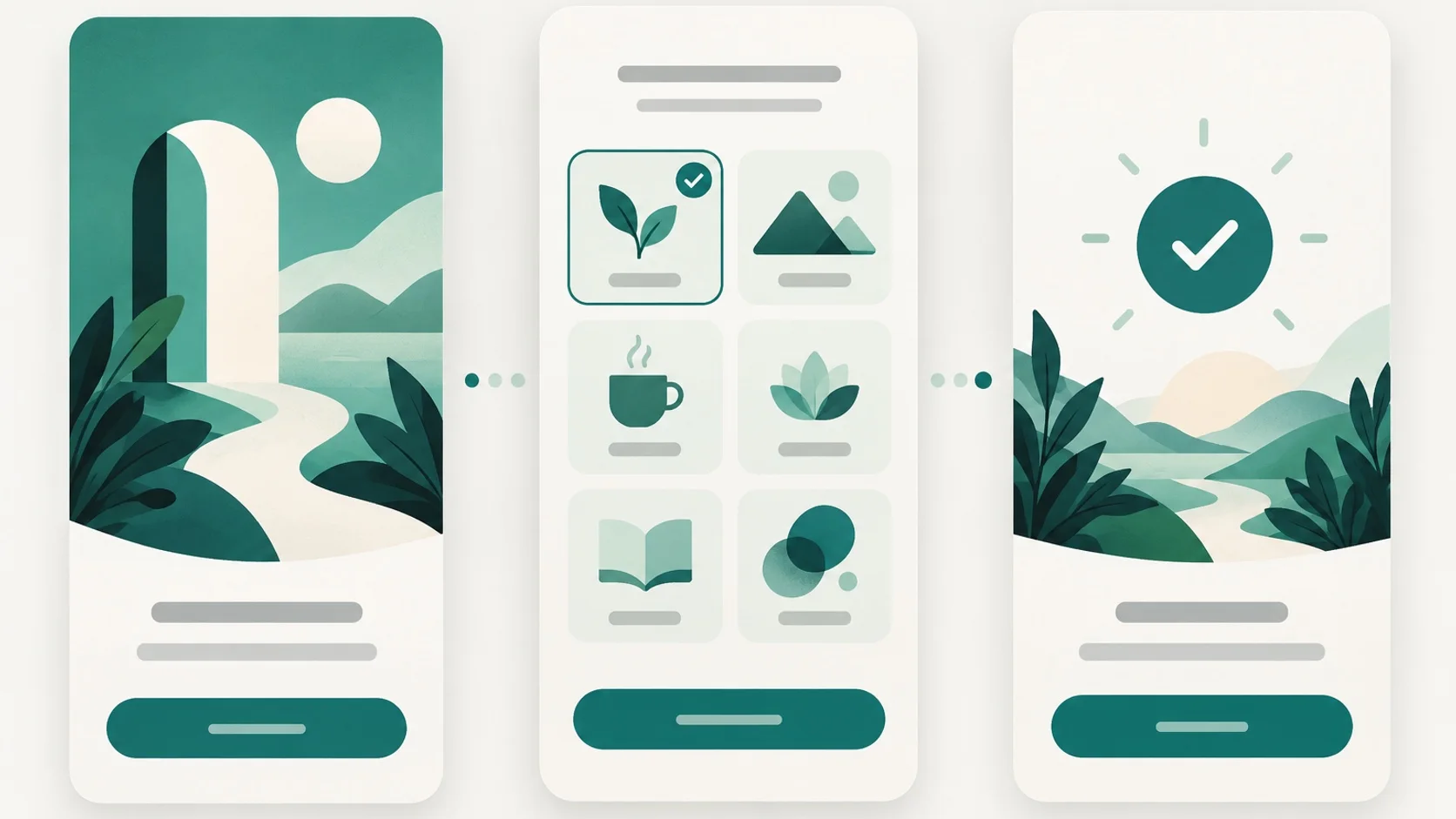
An individual screenshot is useful for studying a layout, hierarchy, or visual pattern. But a product task unfolds over time: a person starts somewhere, makes choices, encounters system or app states, and either reaches an outcome or gets stuck. To study that experience, review screenshots as an ordered sequence and ask what the gaps between them mean.
A sequence of screenshots is still a partial visual reference. It does not prove every route, tap target, animation, error condition, or user outcome. ScreenKits helps you browse captured app screens and compare patterns; use your own prototype or research to validate how an actual flow behaves.
Key takeaways
- Begin with a user goal and scenario, then arrange relevant screens in the order the task requires.
- Annotate state, decisions, and transitions between captures instead of treating adjacent images as a verified interaction recording.
- Record missing evidence and test the real interface when behavior, timing, or alternate paths matter.
1. Separate a screen reference from a flow
A screenshot answers questions about one captured state: What is prominent? How is information grouped? What does the primary action look like? A flow review adds relationships: What goal brings someone here? What action moves them forward? What changes after that action, and how can they recover or take another route?
Keep three evidence types distinct. An individual screenshot is a still image. An ordered screenshot sequence suggests a possible progression through captured states. An interactive recording or prototype shows behavior over time, but may still cover only one path and one set of conditions. A sequence is not automatically a tappable flow, a complete journey, or an analytics record.
This distinction makes a screenshot library more useful, not less. Browse all ScreenKits examples to collect visual references, then make your own map of the task, branches, and unanswered questions. Use categories to narrow the context, or filter for onboarding examples when reviewing a first-use sequence.
2. Start with the task, not the image pile
Choose one concrete scenario, such as “save a product for later” or “finish setting up a new account.” Name the person’s goal in their terms; filling out a form or tapping a button is usually a step, not the goal. Nielsen Norman Group describes task analysis as studying the goal, steps, their order and structure, and the information needed along the way. That gives your review a useful unit of analysis: the task and the path through it.
Next, gather the screens that appear relevant and arrange them in a tentative order. Label each one with what seems to be happening, such as browse, choose, confirm, permission request, success, or recovery. Mark the order as a hypothesis unless you know how the captures were produced. If a screen could fit more than one point in the task, note the ambiguity instead of forcing certainty.
For a stronger map, add alternate paths and conditions beside the main sequence: a returning user, a declined permission, an invalid field, an empty result, or a lost connection. These branches often expose design questions that a polished happy-path gallery cannot answer.
- Write the user, situation, and intended outcome in one sentence.
- Put the apparent steps in order and label the evidence behind that order.
- Add likely branches, prerequisites, and recovery steps as separate notes.
3. Inspect what changes between screens
The transition is where the reasoning happens. For each adjacent pair, write the trigger you believe connects them, what changed, and what the person should understand now. Did a choice persist? Did the app acknowledge a save? Is the next screen a new destination, a temporary dialog, or a system permission prompt? If the evidence does not show the trigger, mark it unknown.
Track state as well as destination. A form can be blank, partly complete, invalid, submitted, or restored after interruption. A purchase screen can have an offer, loading state, error, and confirmation. Two nearly identical captures may reveal a meaningful state change; two visually different screens may belong to separate routes. Use labels or annotations so your sequence does not imply causality the captures cannot prove.
Navigation needs orientation and recovery. Apple’s Human Interface Guidelines describe tab bars as navigation among top-level sections and note that preserving each section’s navigation state helps people switch without losing their place. Apply that kind of question to references: can someone tell which area they are in, return to a prior context, or leave a guided task? A still image can suggest the affordance, but only interaction testing can establish how it behaves.
- For every transition, record trigger, visible feedback, resulting state, and confidence.
- Check back, cancel, skip, retry, and resume paths where relevant.
- Separate app screens from operating-system UI and external destinations.
4. Choose the right evidence for the question
Different artifacts answer different design questions. Start with the lightest useful reference, then move to a prototype, recording, or user observation when the question depends on actual behavior.
| Artifact | Useful for | What it cannot establish by itself |
|---|---|---|
| Individual screenshot | Visual hierarchy, copy, component patterns, and a captured state | What caused the state, what happened before or after, or whether controls work |
| Ordered screenshot sequence | Comparing apparent progression, repeated patterns, and candidate transition gaps | That the order is complete, every branch is represented, or transitions are interactive |
| Interactive prototype or recording | Reviewing a defined path, timing, feedback, and interaction behavior | How all users behave, all possible routes, or outcomes outside the recorded scenario |
| Observed task research | Learning where people hesitate, what they expect, and how they recover in context | A universal result from a small or unrepresentative sample |
5. A repeatable annotated flow review
Use the checklist below for a short critique or a deeper handoff. Keep each annotation specific and separate observations from assumptions. If you are reviewing your own product, test the mapped task with a prototype or working build and revise the map when observed behavior differs.
- Define one user, context, and observable end goal.
- Order the relevant captures; label each as confirmed, inferred, or unknown.
- For each step, note the user action, interface response, current state, and next decision.
- Mark gaps: missing trigger, unclear progress, lost context, absent feedback, or no recovery route.
- Add alternate and failure states, including skip, back, cancel, empty, error, and permission-declined cases.
- Check whether labels and hierarchy make the next action and current location understandable.
- Turn each uncertainty into a question for a prototype walkthrough or observed task session.
- Record the evidence source and date so later reviewers know what the map represents.
Common questions
Are a sequence of screenshots and an app flow the same thing?
No. A sequence is a set of still captures arranged to suggest progression. An app flow also describes actions, transitions, states, and possible branches. Treat a screenshot sequence as partial visual evidence unless interaction behavior and coverage have been verified separately.
How should I annotate missing screens or transitions?
Write down what you know, what you infer, and what is unknown. Note the user action, expected feedback, resulting state, and any missing recovery or alternate path. Use a prototype or observed session to answer questions that the captures cannot resolve.
Can I use screenshot references for user research?
They can support design comparison and help you form hypotheses, but they do not show how participants behave or what they understand. To learn that, give people a realistic task in a prototype or working interface and observe the outcome.