Mobile Login and Signup Design: Make the Account Step Feel Clear
A practical guide to mobile login and signup design, from deciding when an account is needed to building forgiving forms and useful recovery paths.
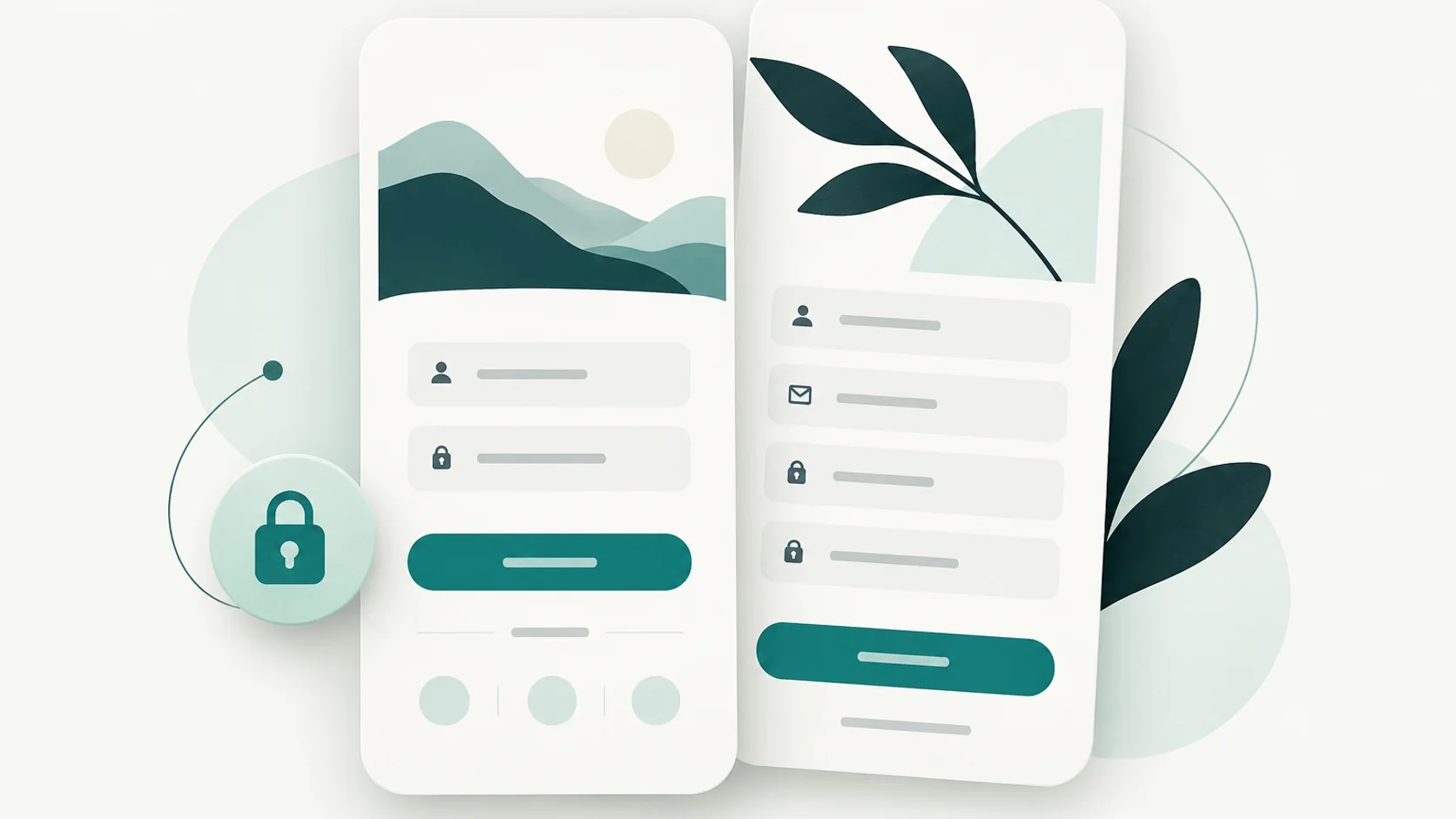
A login screen is a small interface with an outsized effect: it can help someone resume a task, or interrupt them before they understand why an account matters. Good mobile account design starts by treating authentication as part of a product journey, rather than a gate that every person must pass at launch.
The flow should make its purpose and choices easy to understand, ask only for information needed now, and give people a calm way forward when something goes wrong. The details matter to both first-time visitors and returning users who may have forgotten which sign-in method they used.
Key takeaways
- Ask for an account at the first meaningful point where it enables a clear benefit or is genuinely required.
- Explain each sign-in option in familiar language and make the new-account path distinct from returning-user access.
- Keep forms focused, label fields clearly, and let password managers and paste work as expected.
- Show errors in text with a useful next step, preserve valid input, and offer recovery without blame.
Choose the moment an account becomes useful
Begin with the job the person came to do. If the core experience can work without an account, let people explore first and request sign-in when they reach a feature that needs saved preferences, cross-device access, collaboration, or a transaction. Apple’s Human Interface Guidelines recommend delaying sign-in when possible and explaining the benefit when an account is required.
A contextual prompt is easier to understand than a launch-time wall. For example, a reading app could let someone browse titles, then ask them to create an account when they choose to sync a reading list. If account creation is essential from the start, say why before presenting fields. Keep the explanation concrete and proportionate: “Create an account to save your projects and open them on another device” is more useful than “Join our community.”
- Separate required information from optional profile details.
- For guest checkout or a one-time task, consider whether account creation can wait until after the immediate value is delivered.
- After authentication succeeds, take people to the action they intended to complete.
Make sign-in choices clear and recognizable
A person should be able to tell whether they are creating an account or returning to one. Give the two routes distinct labels, keep the primary action visually clear, and place alternate methods where they can be compared without overwhelming the screen. Use provider names and platform-approved button treatments where relevant; a generic “Continue” label alone does not explain what happens next.
Offer only methods the product supports and can maintain. Email, a passkey, or a platform identity option may fit different audiences. Present them as choices, not as a claim that one method is universally easiest or safest. Explain any additional required information.
Returning users may not remember their sign-in method. Make recovery and alternate sign-in discoverable, and explain what to do if an email is associated with a different method. Account-linking guidance can help people retain access to an existing account.
Keep forms focused and compatible with people’s tools
Ask only for fields needed to create or access the account. Use persistent labels instead of relying on placeholder text as the only label, choose an appropriate input type and keyboard, and make the next action clear. If signup needs several pieces of information, group related fields and defer optional preferences until after the person reaches the product.
Authentication should work with autofill and password managers. Use standard field names and semantics, and avoid custom behavior that prevents credential filling. Do not block password paste: people may use a password manager or another tool. WCAG guidance calls out allowing browsers and third-party password managers to fill login fields.
Behavior can vary across devices and password managers, so check the flow on supported platforms and allow manual correction. After a failed attempt, preserve useful non-sensitive values such as an email address when practical.
- Use a visible label such as “Email address” and a clear password label.
- Allow people to reveal or check a password when appropriate, without making that control the only way to correct entry.
- Keep the primary button near the fields and give it an action-specific label such as “Create account” or “Sign in.”
Design for mistakes, recovery, and the next visit
A useful error identifies the affected field or failed step in text and tells the person how to continue. “Something went wrong” is not enough when an email format is invalid or a field is empty. WCAG 2.2 Success Criterion 3.3.1 requires detected input errors to be identified and described in text; color or an icon should not carry the message alone.
Use neutral language and place field-specific guidance close to the field. For example, hypothetical copy for a malformed address might say: “Enter an email address in the format [email protected].” For an unsuccessful sign-in, a product could say: “We couldn’t sign you in with those details. Check your email and password, or reset your password.” Avoid exposing sensitive account information in error messages; choose wording that fits the product’s privacy and abuse-prevention needs.
Explain what happens after someone requests a reset, provide a way back to sign-in, and help people find the method they used before. On later visits, show signed-in state clearly and provide a route to account settings, sign-out, and help. If accounts can be created in the app, make account deletion easy to locate.
- Associate an error with the field it describes and make it perceivable without color alone.
- Keep recovery actions close to the sign-in form and avoid making users restart unnecessarily.
- Review both first-use and returning-user states, including changed email addresses and unavailable sign-in methods.
A practical account-flow review
Walk through the flow as a new person, a returning person, and someone recovering access. Check the screens in context. The mobile patterns library can help teams compare how forms organize inputs, labels, and actions.
- Can people reach useful product value before signing in when the account is not essential?
- Does the screen say why an account is needed and which information is required?
- Can a person distinguish signup, sign-in, alternate methods, and account recovery?
- Do field labels remain visible, and can autofill and paste populate credentials?
- Do errors name the problem in text, preserve useful input, and suggest a next step?
- After success, does the person return to the task they started?
Common questions
Should a mobile app require an account before people can explore?
Only when the core function genuinely requires an account. If people can browse or try the product first, let them do so and request sign-in when it enables a clear benefit or is needed for a specific action.
Should password fields allow paste and password-manager autofill?
Yes. Use recognizable field labels and semantics, and do not block paste or autofill. These features help people use their preferred credential tools, though behavior can vary across devices and password managers, so check the flow on supported platforms.
What should a login error message include?
Describe the problem in text, identify the affected field or step, and offer a practical next action. Keep the wording neutral and avoid revealing sensitive account details.